
How to Fix a Blocked Connection Yourself
If a customer, teammate, or you yourself suddenly can't reach a website, email account, or cPanel — this usually means our firewall automatically blocked that connection, often after a few failed login attempts. Here's how to remove the block yourself, in under a minute, without opening a support ticket.
Step-by-step
1. Go to My Services and open your service
Log into the Client Area, click My Services, then click into the specific hosting service that's affected.

2. Find the "IP Unblock Access" box
On the service details page, look for a light-blue box titled IP Unblock Access.
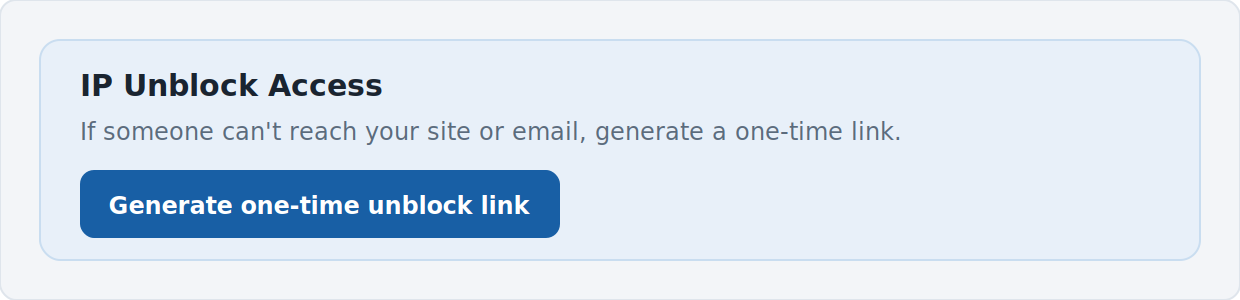
3. Click "Generate one-time unblock link"
A link will appear along with a Copy button.

4. Open the link
Open it yourself, or send it to whoever is actually having trouble connecting — a customer, a coworker, anyone. The page automatically detects their connection and shows its status.
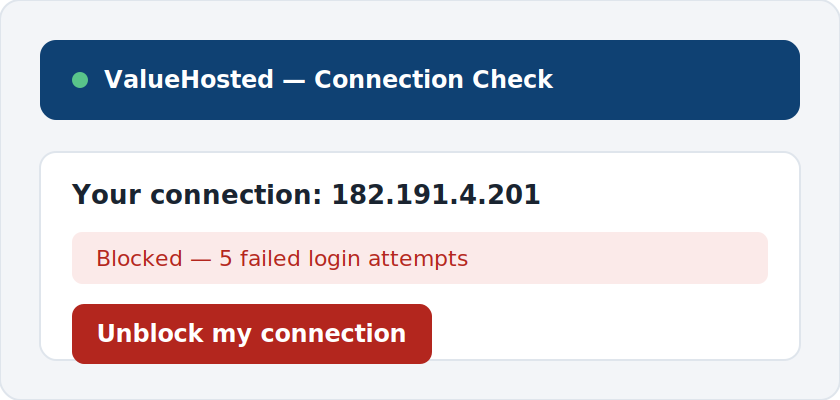
Important: this link works exactly once. The moment it's opened, it's used up — even if the visitor doesn't click anything further. This makes it safe to hand off to someone else, since it can't be reused or shared further after that first visit.
Good to know
- It only ever unblocks the exact connection being used at that moment — never any other address.
- There's a daily limit on how many times this can be used, to prevent misuse.
- If the "IP Unblock Access" box doesn't appear on your service page, it hasn't been enabled on your account yet — open a support ticket and we'll turn it on.
